

文章插圖
#軟件簡介
Xind是一款全球領(lǐng)先的“可視化思考”工具,為企業(yè)打造全新的可視化辦公平臺,協(xié)助用戶快速捕捉創(chuàng)意與靈感 。通過直觀、友好的圖形化操作界面,將思想、策略及商務(wù)信息轉(zhuǎn)化為行動藍圖,全面提升企業(yè)辦公效能 。
Xind不僅可以繪制思維導圖,還能繪制魚骨圖、二維圖、樹形圖、邏輯圖、組織結(jié)構(gòu)圖 。并且,可以方便地從這些展示形式之間進行轉(zhuǎn)換 。可以導入MindManager、FreeMind數(shù)據(jù)文件 。靈活地定制節(jié)點外觀、插入圖標、豐富的樣式和主題 。輸出格式有:HTML、圖片 。

文章插圖
#基本操作
打開XMind軟件,選擇自己喜歡的結(jié)構(gòu)圖
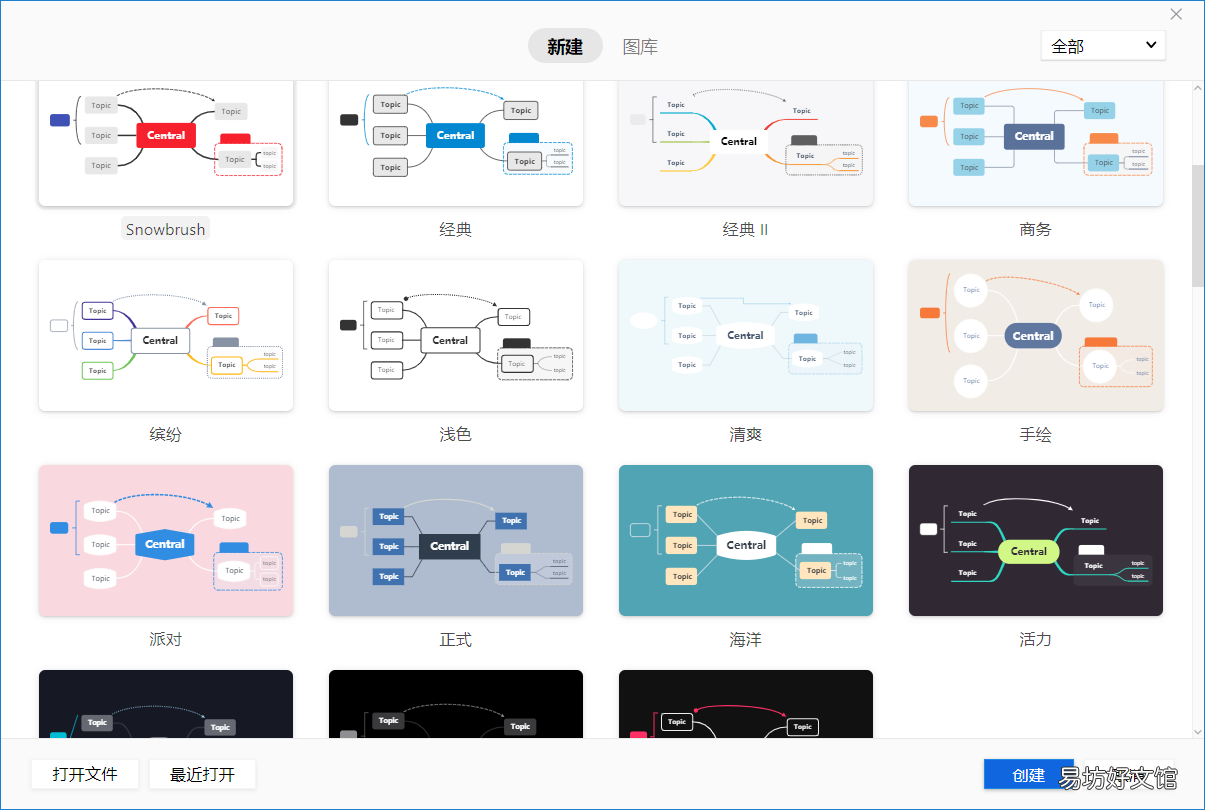
文章插圖
也可以點擊圖庫,根據(jù)需要選擇合適的模板
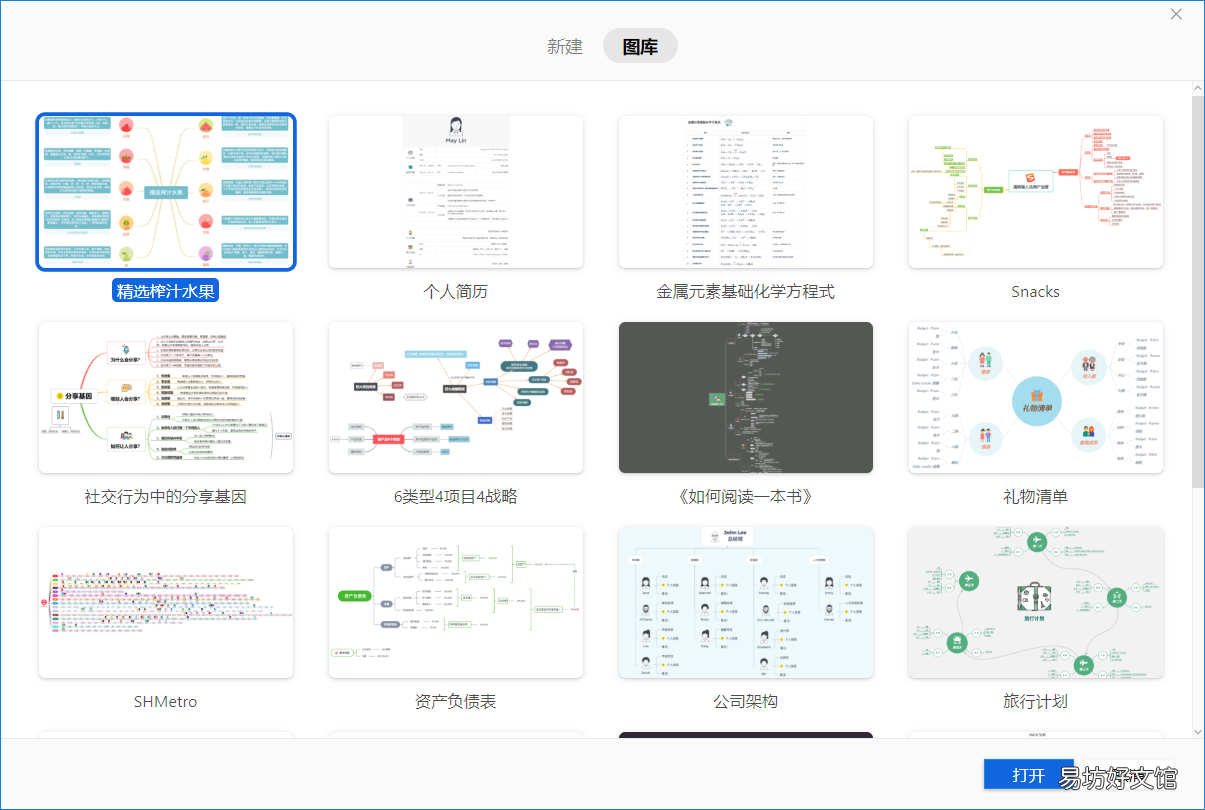
文章插圖
點擊“主題”添加多個同級主題,點擊“子主題”可連續(xù)添加多個子主題,層級逐漸增加 。
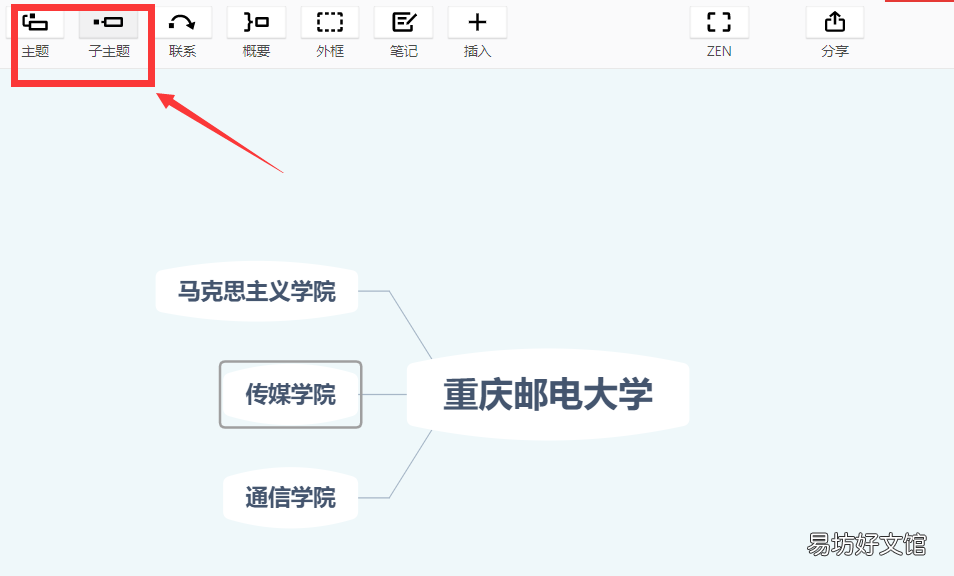
文章插圖
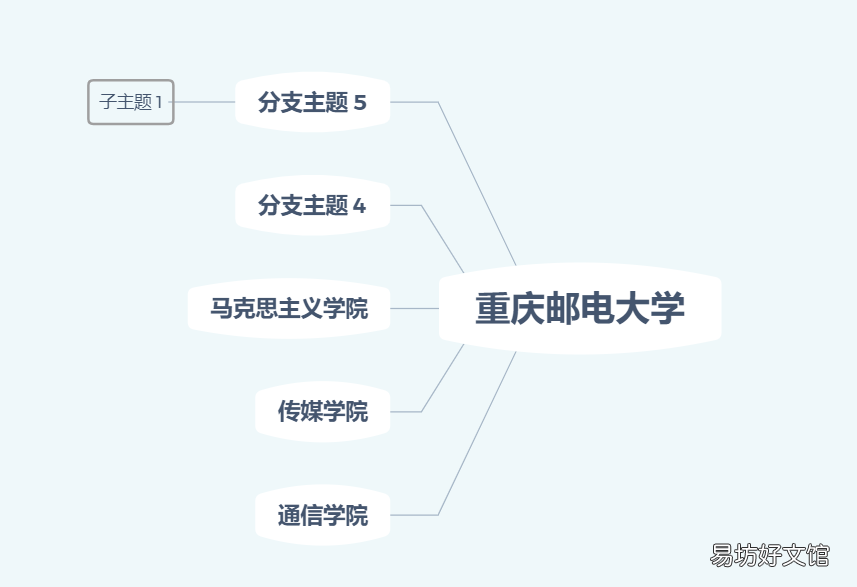
文章插圖
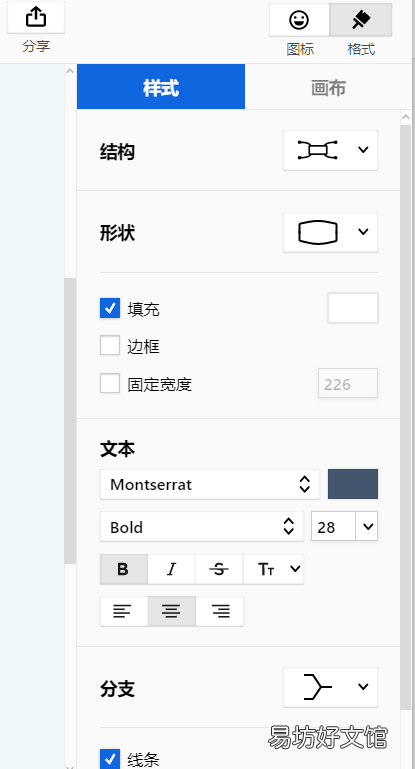
編輯頁面右邊,點擊“格式”,可對對應(yīng)窗口的結(jié)構(gòu)、形狀、文本等屬性進行修改
文章插圖
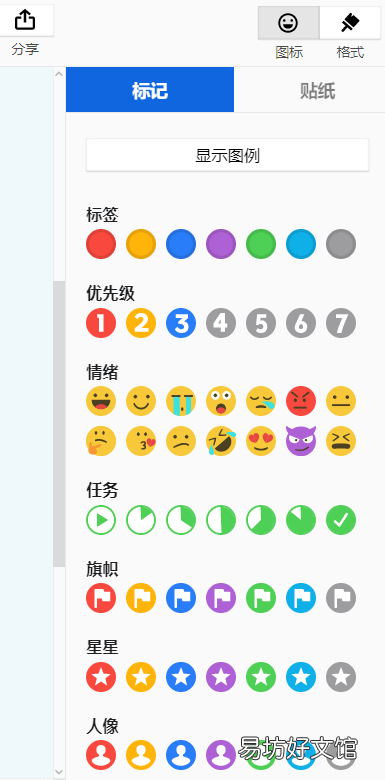
點擊“圖標”,可添加標簽、優(yōu)先級等貼紙
文章插圖
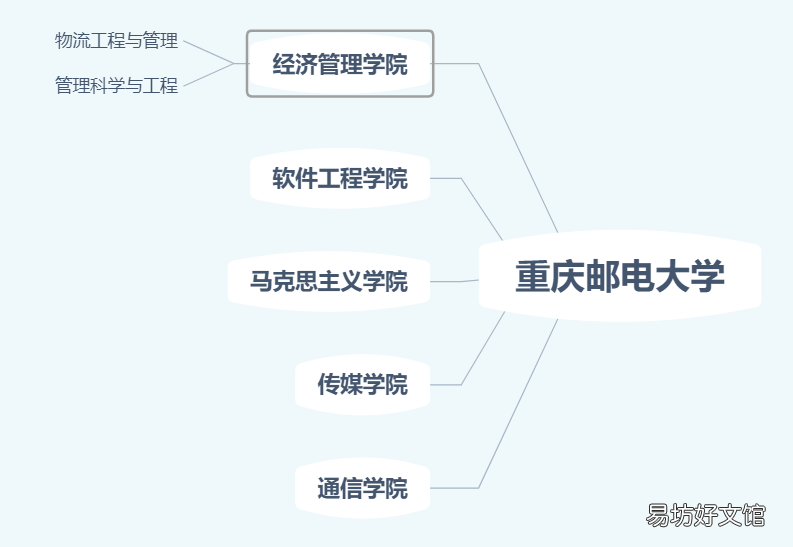
雙擊指定窗口,即可對內(nèi)容進行編輯
文章插圖
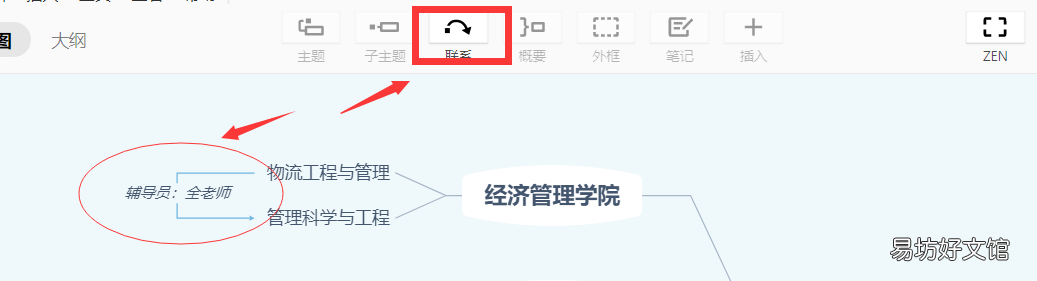
選中指定窗口,再點擊“聯(lián)系”,可與其他窗口建立關(guān)系網(wǎng),線條上可以添加描述 。
文章插圖
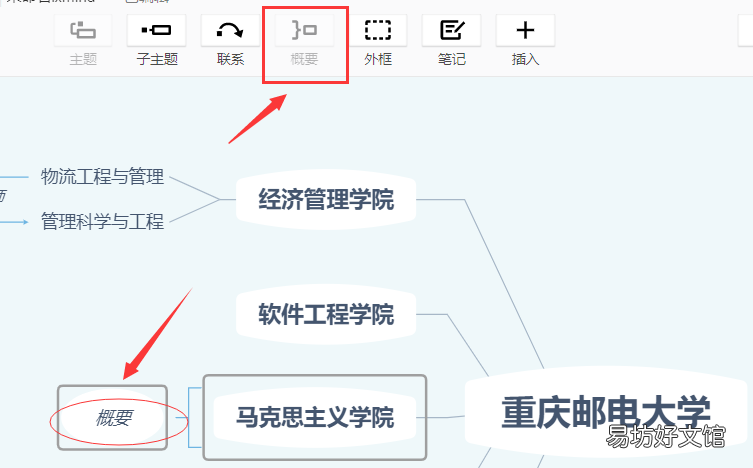
選擇指定窗口,點擊“概要”可對窗口進行簡單標注,適合做讀書筆記總結(jié) 。
文章插圖
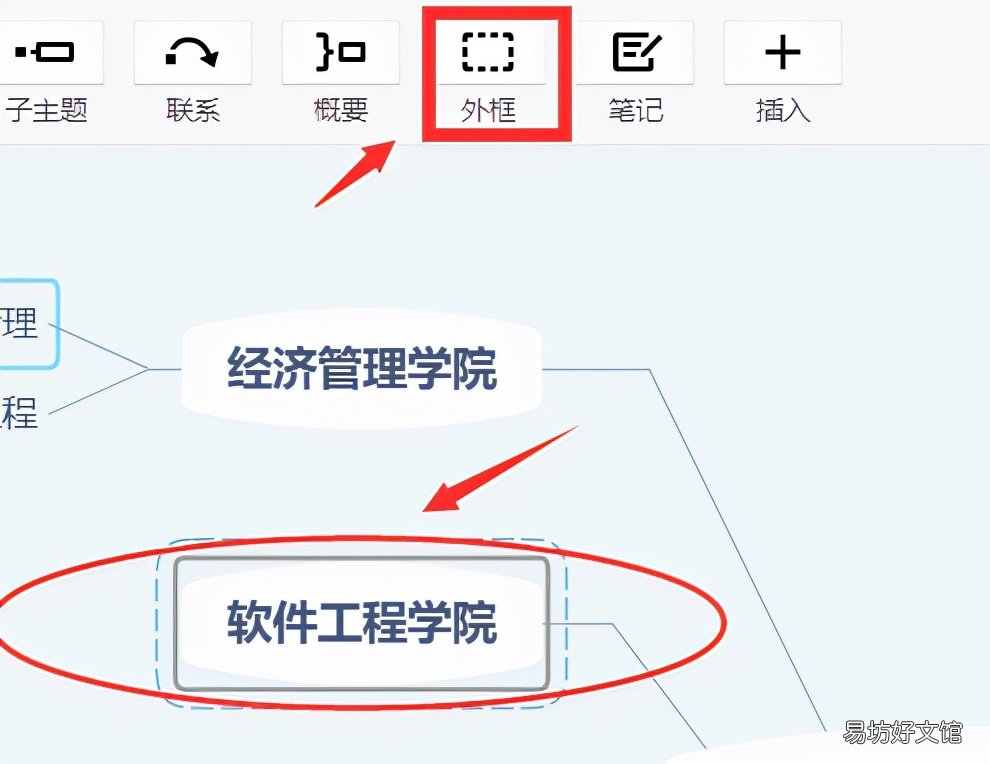
選擇指定窗口,點擊“外框”,可對窗口進行突出顯示 。
文章插圖
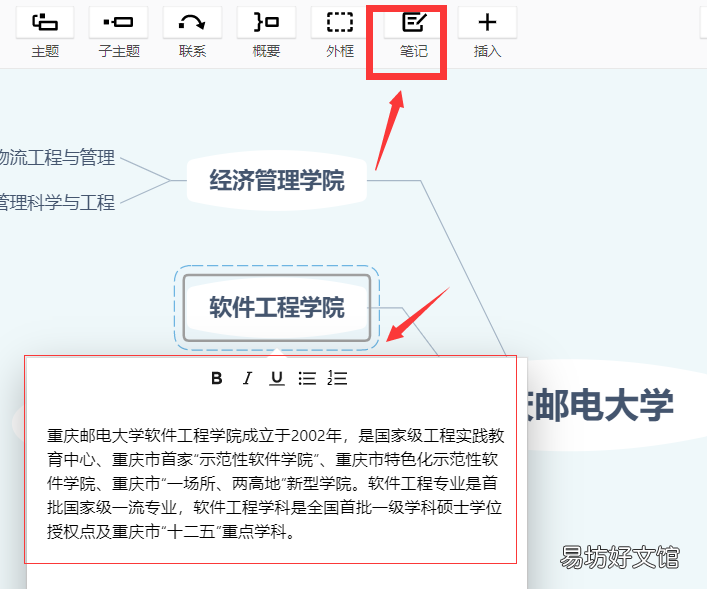
選中指定窗口,點擊“筆記”,可對窗口添加批注 。
文章插圖
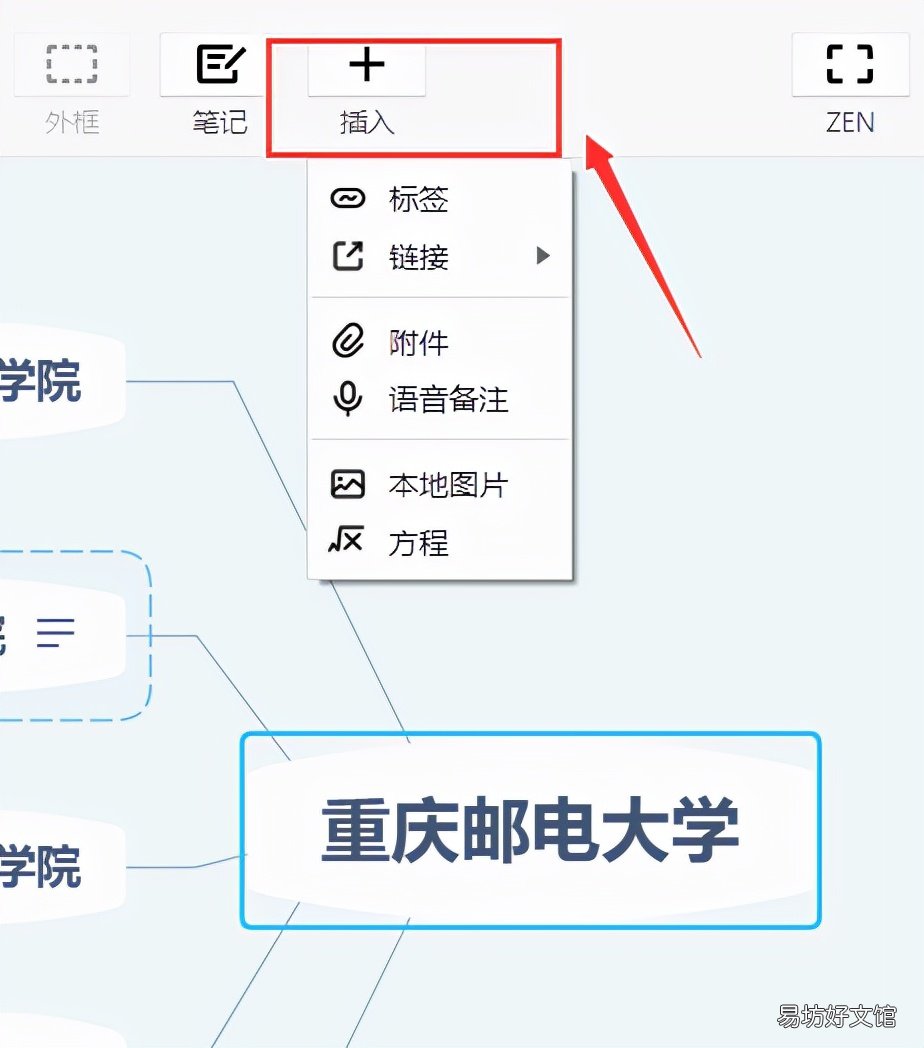
選中指定窗口,點擊“插入”,可添加標簽、鏈接、附件等
文章插圖
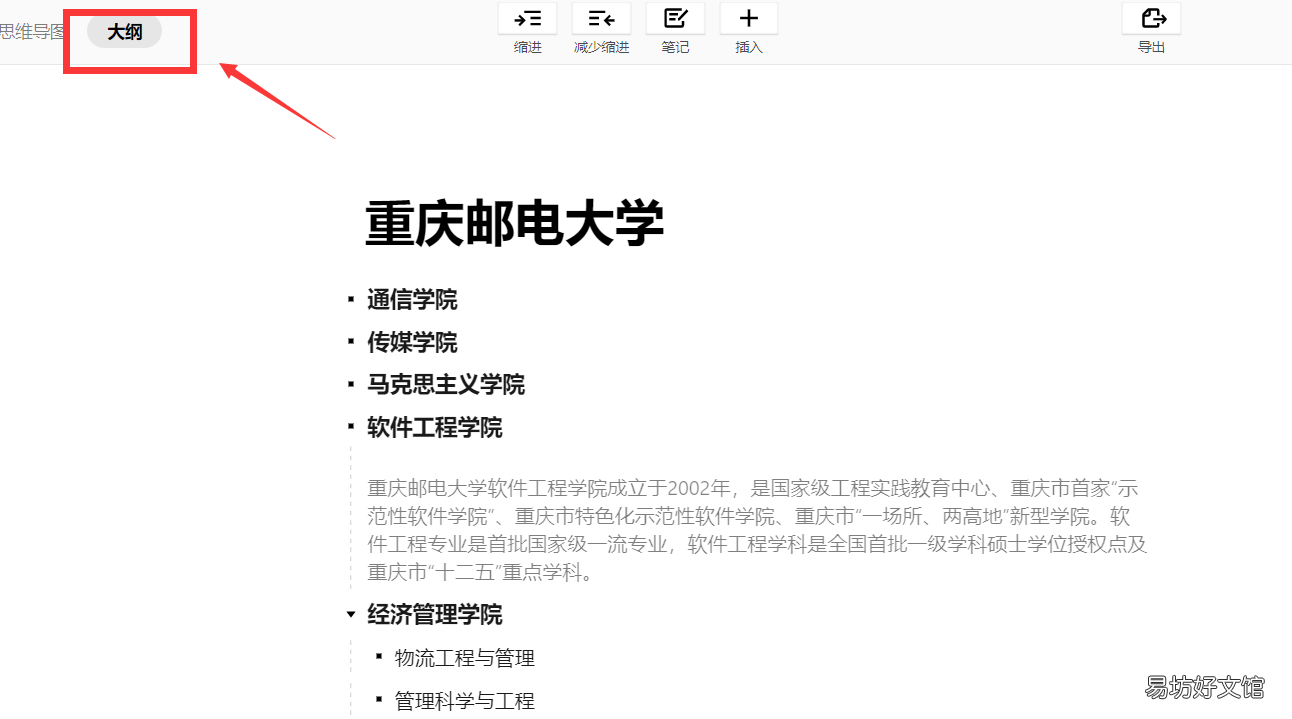
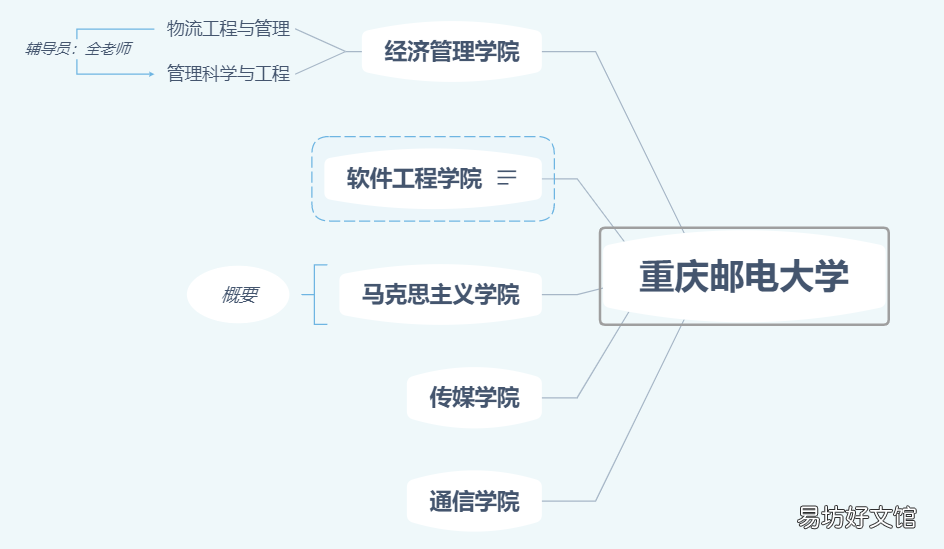
除了在思維導圖頁面直接對窗口進行修改調(diào)整外,還可以通過“大綱”編輯內(nèi)容,可直接轉(zhuǎn)為思維導圖 。
文章插圖
文章插圖
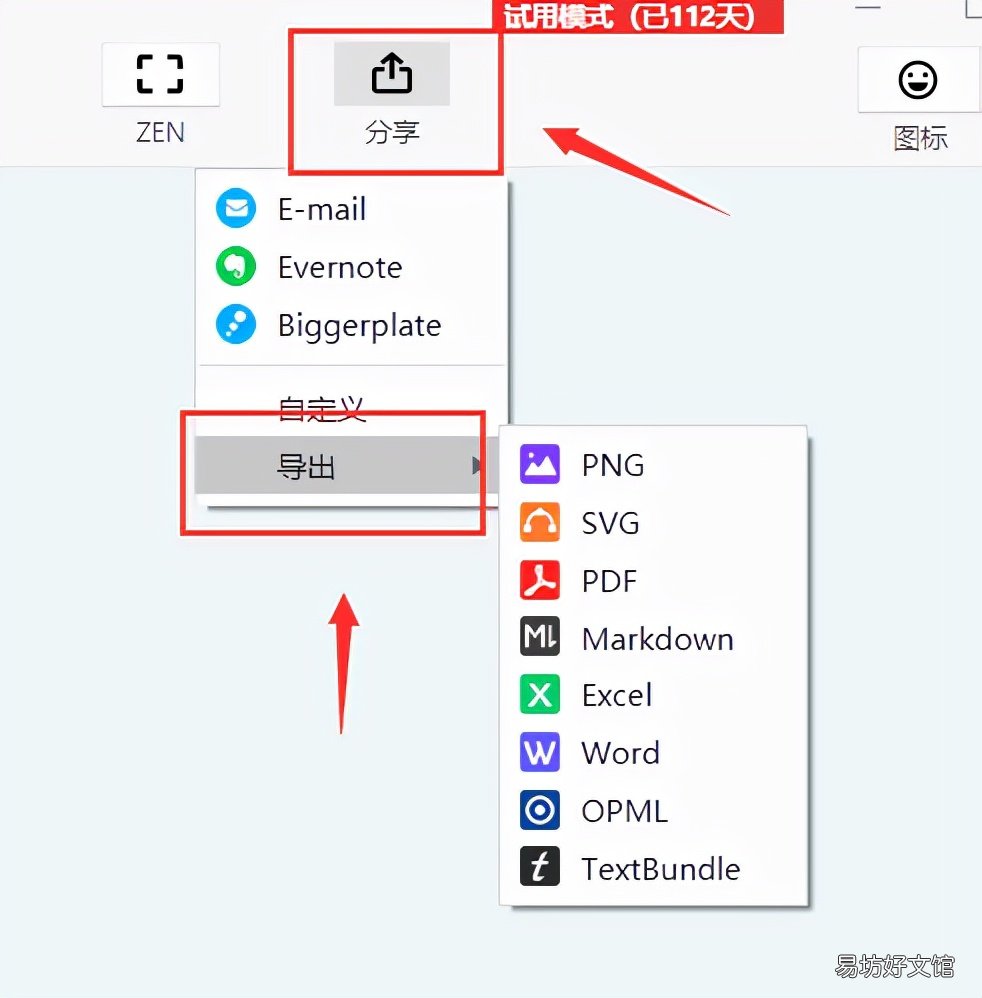
思維導圖制作完成后,點擊“分享”、“導出”按鈕,可選擇導出保存方式 。
文章插圖

文章插圖
#新手必備快捷鍵
(1)選中一個模塊以后,按一下鍵盤上的Tab,就能產(chǎn)生這個模塊的下一級(子主題) 。
(2)按一下Enter,在該模塊下方產(chǎn)生它的并列主題 。
(3)同時按Shift+Enter,在該模塊上方產(chǎn)生它的并列主題 。
(4)同時按Alt+Enter,在該模塊上方產(chǎn)生它的注釋 。
【超詳細xmind新手使用教程 xmind文件怎么打開】 (5)選中連續(xù)的幾個模塊,或者選擇在這些模塊前一級的一個模塊之后,同時按Ctrl+],在這些模塊的后方會出現(xiàn)一個大括號,表示這些內(nèi)容歸屬一類,后面可以寫概要 。
(6)選中連續(xù)的幾個模塊,或者選擇在這些模塊前一級的一個模塊之后,同時按Ctrl+B,會把這些模塊框到同一個方框里 。
(7)同時按Ctrl+L,會出現(xiàn)一根有箭頭的連接線,是從這個模塊出發(fā)的 。如果你點一下已經(jīng)有的模塊,就會在這兩個模塊之間建立聯(lián)系;如果你點的是空白處,就會指向一個自由主題 。
(8)雙擊任意空白處,會在該處生成一個自由主題 。

文章插圖
#英文學習
Software introduction
Xind is one of the world’s leading “visual thinking” tools, for enterprises to create a new visual office platform, to help users quickly capture ideas and inspiration. Through the intuitive and friendly graphical operation interface, ideas, strategies and business information can be transformed into action blueprints to comprehensively improve corporate office efficiency.
Xind can draw not only mind maps, but also fishbone, two-dimensional, tree, logic, and organizational charts. And you can easily switch from one presentation to another. You can import MindManager and FreeMind data files. Flexible customization of node appearance, insertion ICONS, rich styles, and themes. Output format: HTML, image.
Basic operation:
Open XMind software and choose your favorite structure diagram
You can also click on the gallery and select the appropriate template as required
Click “Theme” to add multiple topics of the same level, click “sub-theme” to add multiple sub-topics consecutively, gradually increasing the level.
Edit the right side of the page and click “Format” to modify the structure, shape, text and other properties of the corresponding window
Click icon to add labels, priorities and other stickers
Double-click the window to edit the content
Select the specified window, and then click “Contact”, you can establish a network with other Windows, you can add a description on the line.
Select the specified window and click “Summary” to simply mark the window, which is suitable for summary of reading notes.
Select the specified window and click “Outer Box” to highlight the window.
Select the specified window and click Notes to add comments to the window.
Select the specified window and click “Insert” to add labels, links, attachments, etc.
In addition to modifying and adjusting the window directly on the mind map page, you can also edit the content through the “outline” to directly convert the mind map.
After the mind map is made, click “Share” and “Export” buttons to select the export and save mode.
Essential shortcut keys for beginners
(1) After selecting a module, press Tab on the keyboard to generate the next level (subtheme) of the module.
(2) Press Enter to generate its parallel theme below the module.
(3) Simultaneously press Shift+Enter to create its parallel theme above the module.
(4) Simultaneously press Alt+Enter to generate its comment above the module.
(5) Select several consecutive modules, or select a module in the previous level of these modules, and press Ctrl+] at the same time, a curly bracket will appear behind these modules, indicating that the content belongs to a class, and the summary can be written behind.
(6) Select several consecutive modules, or select a module in the previous level of these modules, press Ctrl+B at the same time, will box these modules into the same box.
(7) Press Ctrl+L at the same time, a connecting line with an arrow will appear, starting from this module. If you click on an existing module, you create a connection between the two modules. If you click on the margin, it will point to a free topic.
(8) Double-click any blank, a free theme will be generated there.

文章插圖
推薦閱讀


- 每天喝咖啡不超過多少為宜
- wifi自動解鎖詳細流程步驟 萬能鎖wifi自動解鎖方法
- 說說霸氣超拽抖音
- 超詳圖解gshock使用指南 g-shock手表使用說明書
- 女人懷孕超累委屈難受的個性簽名
- 乳腐的腌制方法 超簡單的方法
- qq說說大全霸氣超拽
- 一覽iPhone8p詳細參數(shù)配置 蘋果8plus多少厘米長度
- 史上最詳細手機修圖app推薦 只有蘋果才能用的p圖軟件
- 制作飛機詳細步驟流程 迷你世界飛機怎么做教程